AWS
Certification
AWS Certified Cloud Practitioner
CLF-C01
https://aws.amazon.com/certification/certified-cloud-practitioner/
https://courses.datacumulus.com/downloads/certified-cloud-practitioner-zb2/
AWS Certified SysOps Administrator
SOA-C02
https://aws.amazon.com/certification/certified-sysops-admin-associate/
https://courses.datacumulus.com/downloads/certified-sysops-administrator-dw1/
AWS Certified DevOps Engineer - Professional

DOP-C01
https://aws.amazon.com/certification/certified-devops-engineer-professional/
AWS Certified Security - Specialty
SCS-C01
https://aws.amazon.com/certification/certified-security-specialty/
General
Recover Lost SSH Key
https://github.com/miztiik/AWS-Demos/tree/master/How-To/setup-ssh-key-recovery-using-userdata
- Create a new instance with an SSH key
- SSH into the instance and copy the authorized_keys entry
- Stop the instance that you lost the key for
- Edit the user data of the instance:
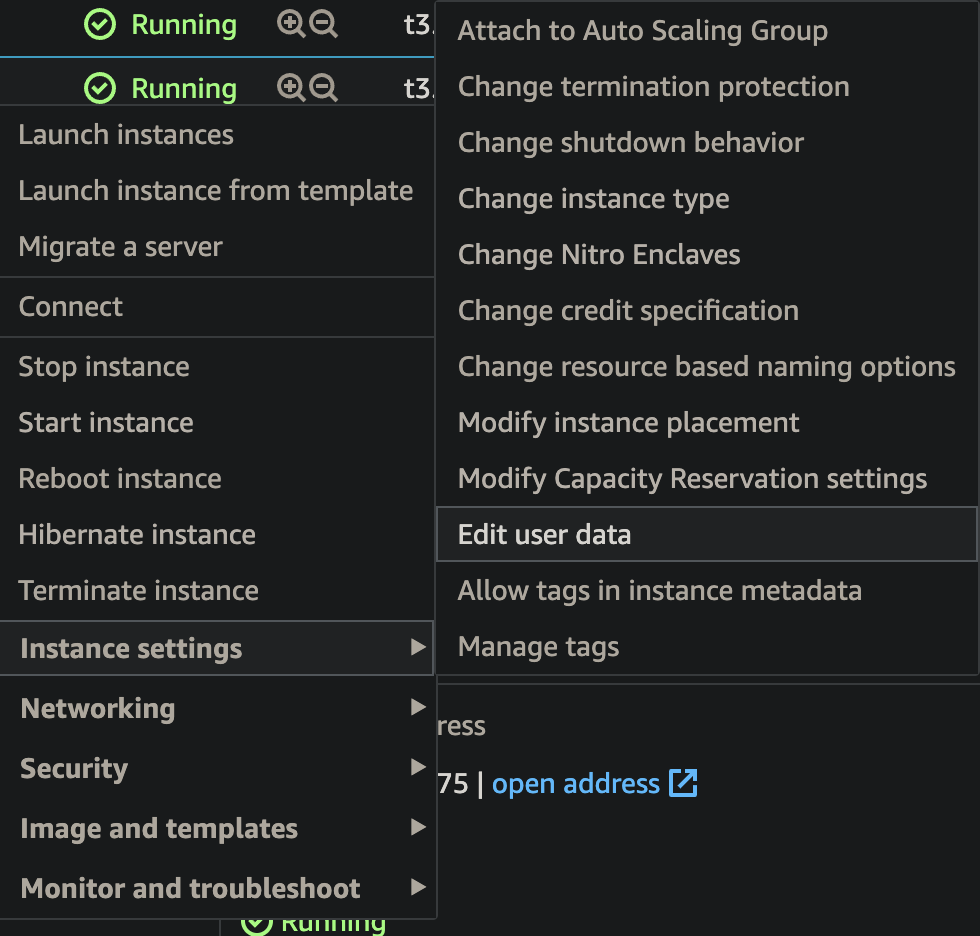
- Paste the below in the user data of the instance and start it:
Content-Type: multipart/mixed; boundary="//"
MIME-Version: 1.0

--//
Content-Type: text/cloud-config; charset="us-ascii"
MIME-Version: 1.0
Content-Transfer-Encoding: 7bit
Content-Disposition: attachment; filename="cloud-config.txt"

#cloud-config
cloud_final_modules:
- [scripts-user, always]

--//
Content-Type: text/x-shellscript; charset="us-ascii"
MIME-Version: 1.0
Content-Transfer-Encoding: 7bit
Content-Disposition: attachment; filename="userdata.txt"
#!/bin/bash
/bin/echo -e "ssh-rsa AAUvoqDuvCKFrVzeq/O68JgAo0zSSD3KMYwO1RSZ8/2FwMEYZP7jAh3GOYJhIS
AzFsDcN/jgtluZIwEn7MXym21EDLk1aFdI20WtbQJH79as9+nV9jtzf9BiQnM/fe18Frb94A1DUALcEyPesl
oYvcOxyCCaqAKS6v1g1me4Up+IbHNfVgE+GtLdh+oohR8SRc3xL9tvQu0kzFSRVsfymhu5l2WBpf9STvm3rt
MbNKzjmKAqPlMSuShn72pTwqScGoPG+3ofZ36nLdh+oo" >> /home/ec2-user/.ssh/authorized_keys
--//
- Login to the server with the new key
- Remember to stop the recovery instance you created if not using it