General
Find What is Using File
Mapping Drive CLI
# Create Mapped drive
net use z: \\server\share /user:administrator mysecurepassword /persistent:Yes

# Delete mapped drive
net use * /delete
Changing Network Type
http://woshub.com/how-to-change-a-network-type-from-public-to-private-in-windows/
Get-NetConnectionProfile
Set-NetConnectionProfile -InterfaceIndex 8 -NetworkCategory Private
Get-NetConnectionProfile -InterfaceIndex 8
7-zip CLI
https://www.dotnetperls.com/7-zip-examples
# a means archive, mx9 means best compression
7zip.exe a -t7z -mx9 z:\dest-compressed-file.7z z:\source-folder
DC Authenticated With
Check which DC authenticated with: echo %logonserver%
Check the Size of a Folder from CLI
Download Firefox from CLI
# In PowerShell:
wget -O FirefoxSetup.exe "https://download.mozilla.org/?product=firefox-latest&os=win64&lang=en-US"
Operations Masters
Forest
Domain Naming Schema
Domain
Relative Identifier (RID) Infrastructure PDC Emulater
PowerShell
Set-ExecutionPolicy Unrestricted Will allow unsigned powershell scripts to run. Set-ExecutionPolicy Restricted Will not allow unsigned powershell scripts to run. Set-ExecutionPolicy RemoteSigned Will allow only remotely signed powershell scripts to run.
Rename Domain Controller
netdom computername <CurrentComputerName> /add:<NewComputerName>
netdom computername <CurrentComputerName> /makeprimary:<NewComputerName>
REBOOT
netdom computername <NewComputerName> /remove:<OldComputerName>
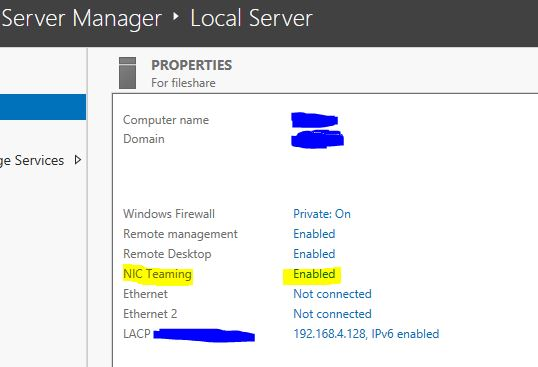
LACP
Windows' Side
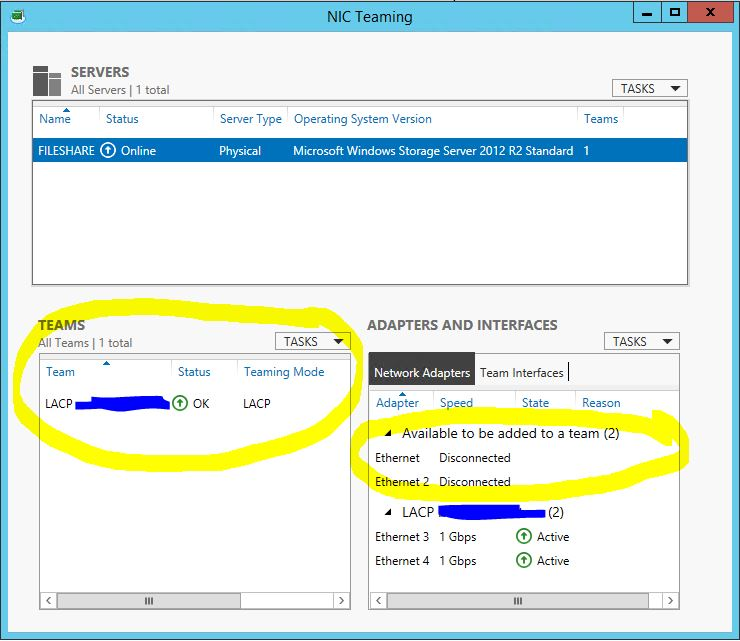
Server Manager > click on Link next to NIC teaming option or run lbfoadmin.exe
Select the adapters, add to team
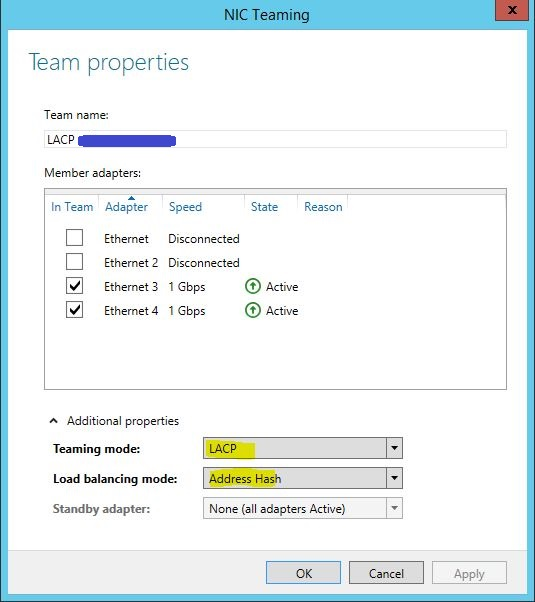
For teaming mode choose LACP, load balancing method use address hash
Cisco's Side
int r g0/1 - 2
channel-group 1 mode active
channel-protocol lacp
int port-chan1
switchport mode trunk
switchport trunk native vlan <server_VLAN>
switchport trunk allowed vlan <all_vlans_to_allow>
Standard Installation
Ensure that the following has been configured on your physical server:
RAID
Hardware Raid - BIOS Software Raid - diskmgmt.msc
Partitioning
diskmgmt.msc > right click on C: > Shrink Volume...
Shadow Copies
sysdm.cpl > System Protection > click on drive
Backups
ntbackup after setting up Windows Backup
Note
Note that iSCSI network cannot restore (backups). Use an external drive for fast, scheduled backups.
Updates
wuapp.exe > install updates
Disable Windows Server Updates
https://www.netzen.co.uk/2019/07/17/disable-windows-server-updates-active-hours/
- Open Windows Powershell by right click > run as administrator
- Type: SCONFIG and hit enter
- Press 5 (Windows Update Settings)
- Press D (Download Only mode)
- Close Powershell
Fixing Windows Corruption
- DISM.exe /Online /Cleanup-image /Scanhealth
- DISM.exe /Online /Cleanup-image /Restorehealth
- DISM.exe /online /cleanup-image /startcomponentcleanup
- sfc /scannow
- chkdsk /f /r