FortiGate
Site to Site VPN
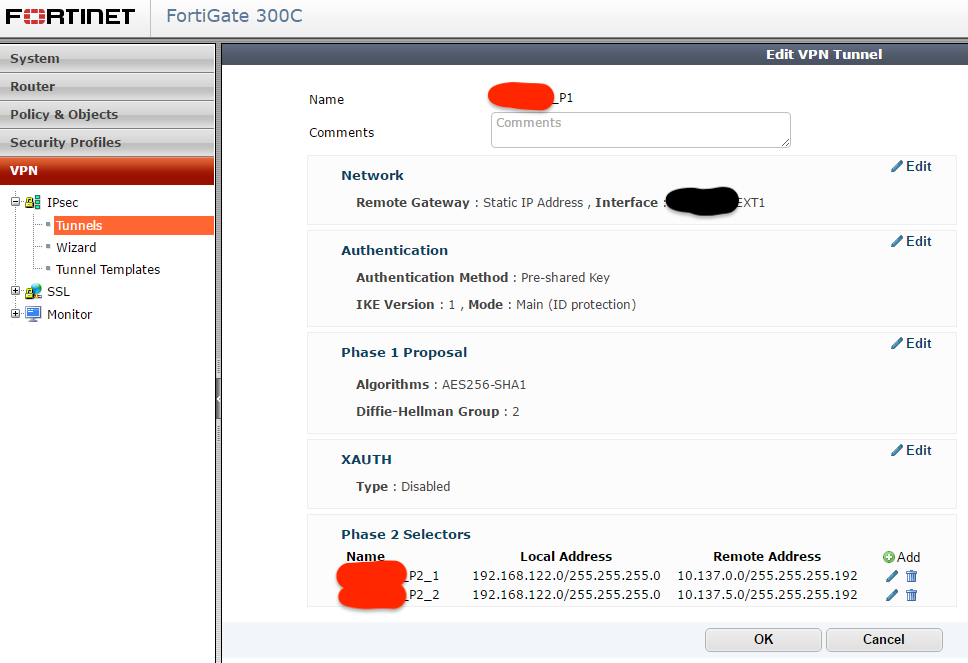
In the below example, we are creating a VPN tunnel from 192.168.122.0/24 to 10.137.0.0/26 and 10.137.5.0/26.
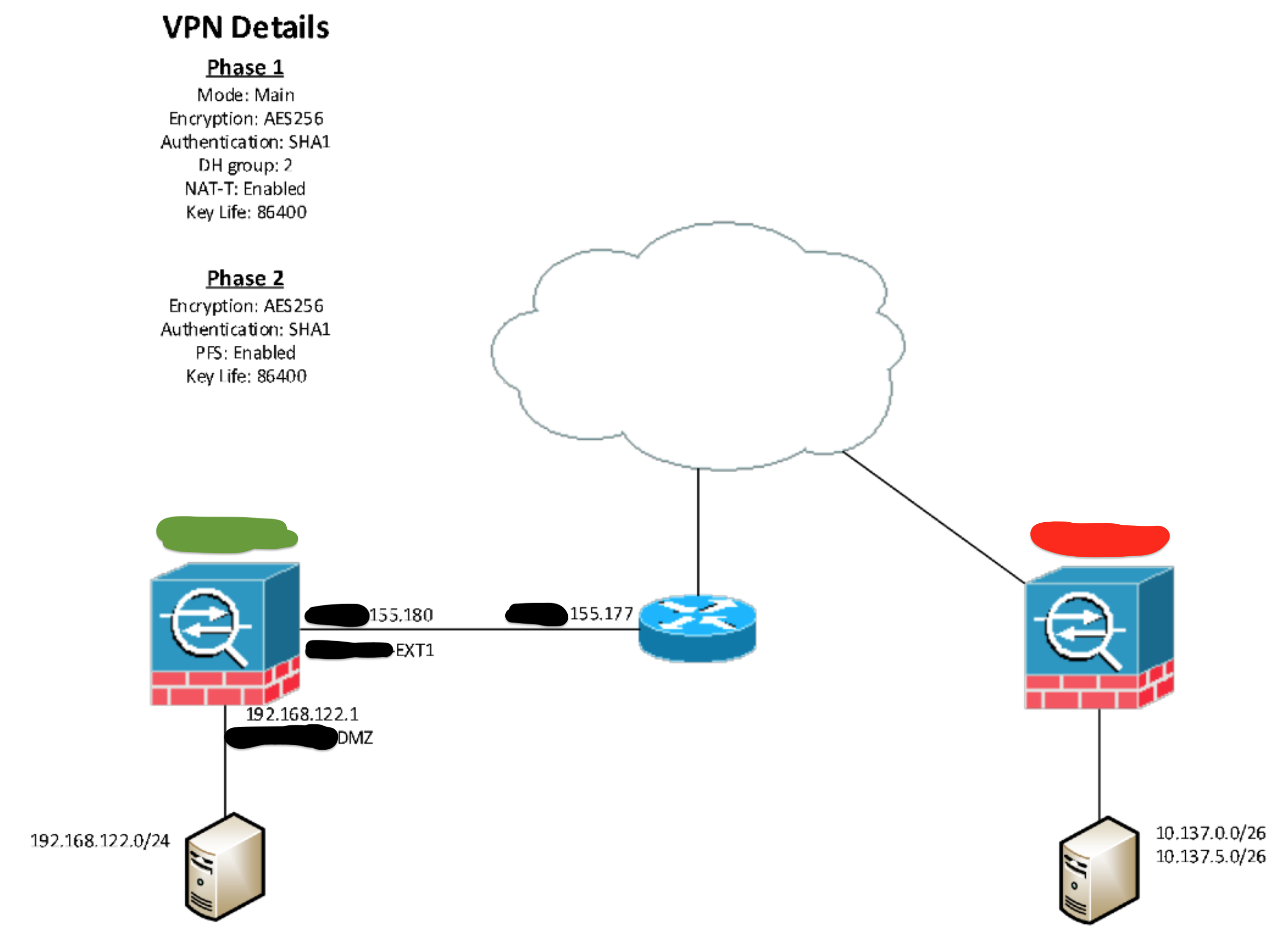
- Create the tunnel.
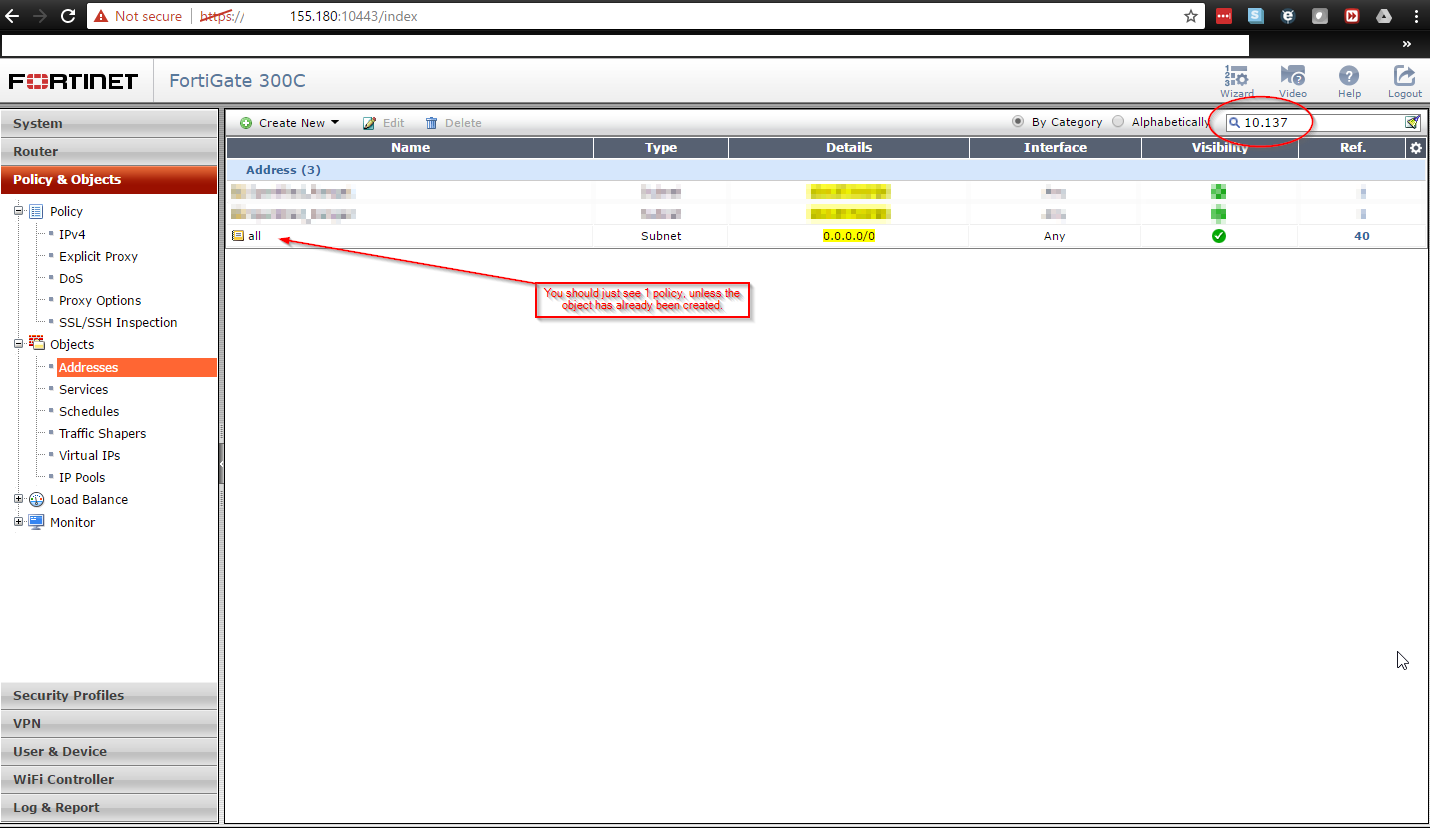
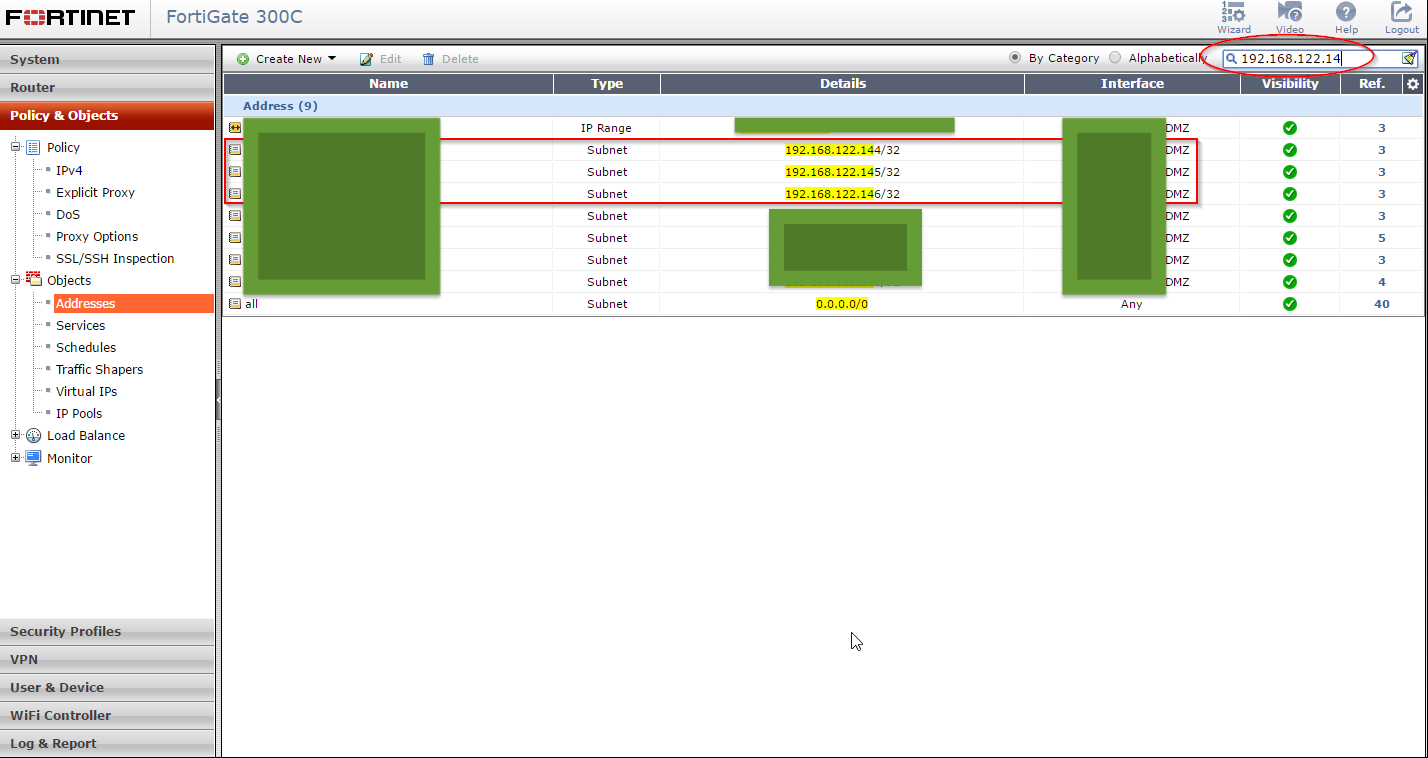
- Check if there are current objects for the destination range(s) (10.137.0.0 & 10.137.5.0). There are ranges already, because this guide was created after the work was done. See the search bar at the top-right.
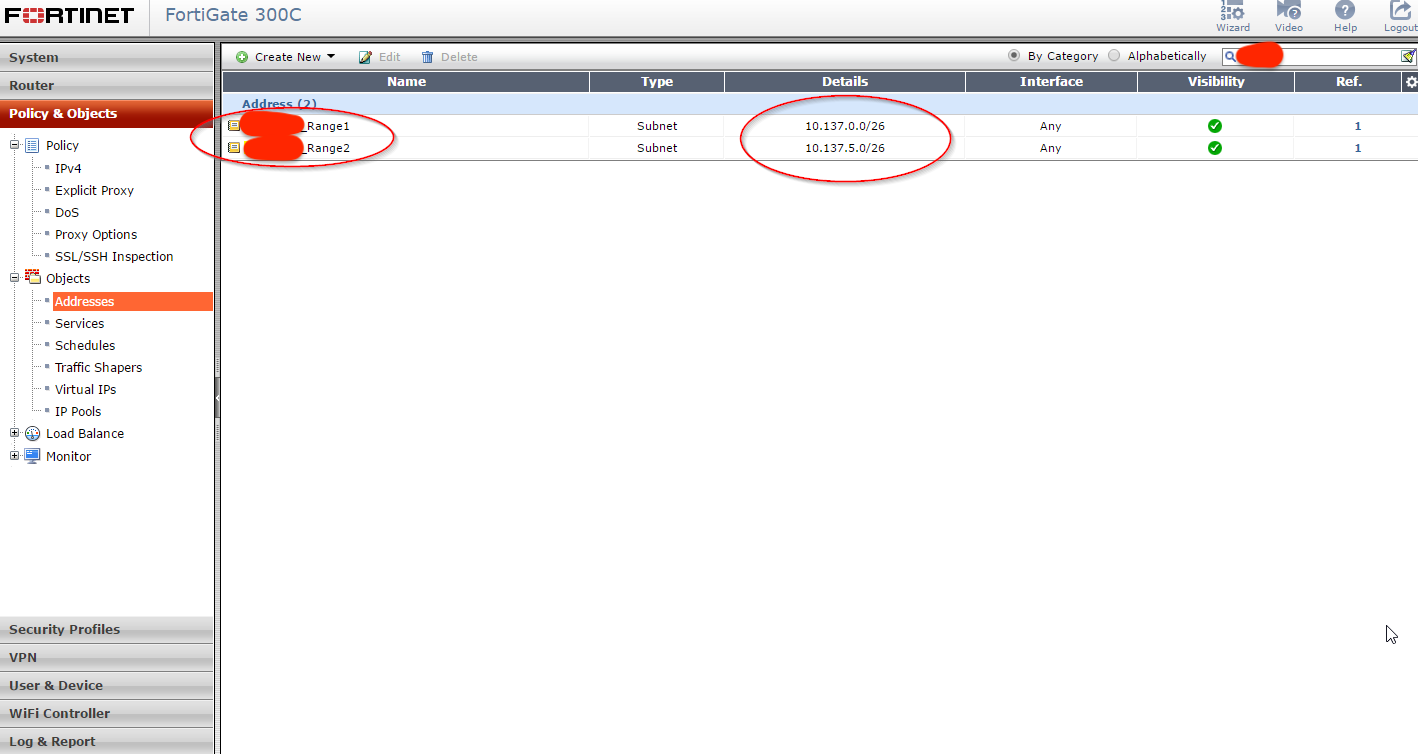
- Create the objects for the destination range(s).
- Find the interface(s) that the source range(s) are connected to. The servers that are needing to communicate to the destination (10.137.0.0 & 10.137.5.0) is 192.168.122.144, 192.168.122.145 & 192.168.122.146.
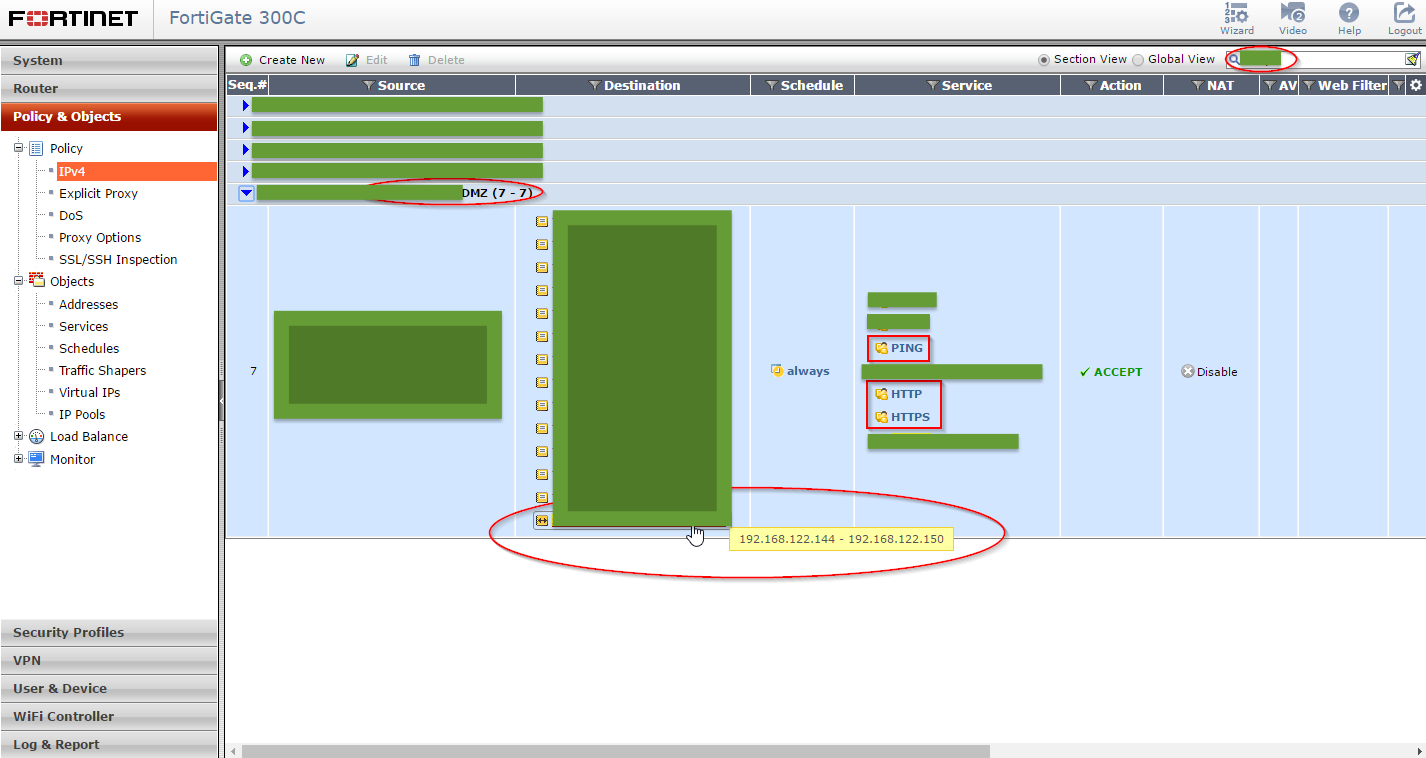
- Find out what is currently allowed to the destination interface (DMZ) from the source IP addresses provided (192.168.122.144, 192.168.122.145 & 192.168.122.146). We know to search for "REDACTED" from the previous step.
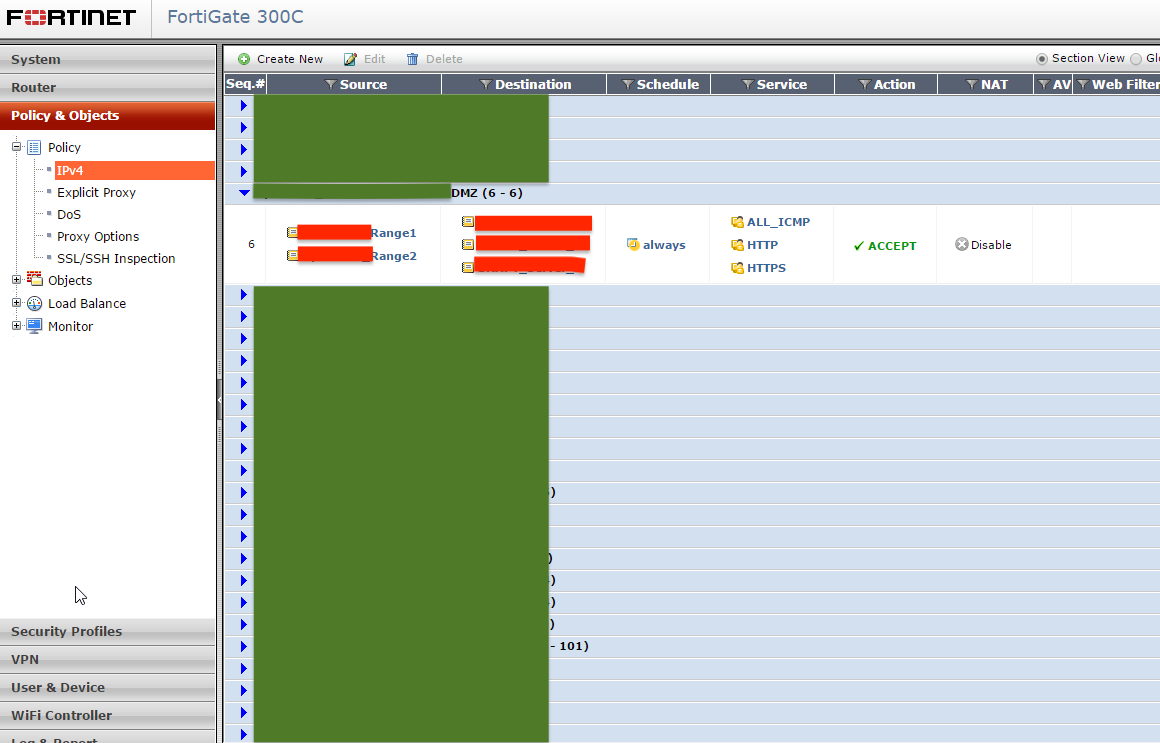
- Create the policy.
Management VDOM
You need the management VDOM (management-vdom root is default) and internet to keep the following alive:
- AV/IPS updates
- DNS queries
- NTP time-sync
- Webfilter rating look-ups
- forticloud logging
- SNMP, Email, alerting
In a multi-vdom environment, you can change the default vdom: